
PST Migration with AzCopy+Purview to Exchange Online Archive Mailbox with bulk ingestion of PST using PowerShell
This post is about how I got a pile of PSTs into Exchange Online Archive mailboxes using AzCopy and Microsoft Purview. I'm writing it because the Microsoft documentation covers the happy path reasonably well but leaves out a few things that will absolutely ruin your afternoon if you don't know about them. Hopefully this saves you some time.
I've also included the two PowerShell scripts I ended up building along the way — one that bulk-ingests PSTs for many users and generates the Purview mapping CSV for you, and one that scans your blob storage for filenames that will break Purview validation and renames them in place. Links to both are further down.
Before you even start — two things that will block you if you miss them
Most guides jump straight into AzCopy commands. I am not doing that, because two prerequisites must be fulfilled before you get anywhere near uploading a single file.
1. Add your admin account to the Conditional Access policy exception list
AzCopy authenticates via Azure AD but runs as a non-compliant device from a CA policy perspective. If your tenant has a policy blocking device-based logins — and most do — AzCopy will get denied even after a successful browser sign-in. The symptom is a 403 with no meaningful error message.
Add the admin account you're running AzCopy under to the exclusion list of the relevant CA policy before you start. Remove it again once the migration is complete — don't leave admin accounts sitting outside compliance policies indefinitely.
This only matters if you're using Azure AD auth on the source storage account. If you're using a SAS token on the source side, this doesn't apply.
2. PST file and folder names must not contain unsupported characters
This one is subtle because AzCopy will often upload the file successfully — the problem surfaces later when Purview tries to validate or process it. Azure Blob Storage and the Purview import service have restrictions on characters in blob names, and PST files coming off old file shares frequently have names that were perfectly fine on NTFS but cause problems in blob storage.
This section grew the most since the first version of this post, because on my last batch the culprit wasn't any of the "obvious" URL-breaking characters — it was German umlauts and parentheses, and they bit me at the Purview validation stage after everything had already uploaded cleanly. I've added them to the tables below and written a dedicated script to fix them, covered later in the post.
Characters that will cause problems
| Character | Example | Why it breaks |
|---|---|---|
# |
#Invoice #2019.pst |
Interpreted as a URL fragment, making the blob inaccessible via HTTP. |
% |
%100% Archive.pst |
Causes URL encoding conflicts (%20 becomes a space, %23 becomes #, etc.). |
? |
?Q&A?.pst |
Treated as the start of a query string in blob URLs. |
+ |
+Sales+Marketing.pst |
Decoded as a space in some URL contexts. |
\ |
\Folder\Archive.pst |
Treated as a path separator, creating an unexpected folder structure. |
Control characters (\t, \n, etc.) |
Filenames containing \t, \n, etc. |
Break CSV parsing and blob URL construction. |
| Leading or trailing spaces | " Archive.pst" |
Silently accepted by some file systems but can fail during blob validation. |
Consecutive dots (..) |
Archive..pst |
May be flagged as a potentially malicious path traversal pattern. |
Characters that look fine but cause Purview mapping CSV issues
| Character | Example | Problem |
|---|---|---|
, (comma) |
Sales, 2019.pst |
Breaks CSV column parsing if fields are not properly quoted. |
" (double quote) |
"Final" Archive.pst |
Breaks CSV quoting and requires escaping ("") according to CSV standards. |
; (semicolon) |
Archive;Backup.pst |
Treated as a column delimiter by some regional CSV parsers (e.g., many European locales). |
Non-ASCII characters that quietly fail Purview validation
This is the category the original post missed, and it's the one that cost me the most time. These characters upload to blob storage without complaint and look completely normal in the portal — the failure only shows up when Purview validates the mapping CSV.
| Character | Example | Fix applied |
|---|---|---|
Ö / ö |
Persönliche Ordner.pst |
Transliterate to oe → Persoenliche Ordner.pst |
Ä / ä |
Änderungen.pst |
Transliterate to ae → Aenderungen.pst |
Ü / ü |
Überwachung.pst |
Transliterate to ue → Ueberwachung.pst |
ß |
Straße.pst |
Transliterate to ss → Strasse.pst |
( ) (parentheses) |
Persönliche Ordner(1).pst |
Remove the brackets, keep the contents → Persoenliche Ordner1.pst |
If your source data is German, French, or any non-English language, assume you have some of these and scan for them before you touch Purview.
What good names look like vs what to avoid
Valid examples
- ✅
BWalker_Archive_2019.pst - ✅
CMayer-MailArchiv-2018.pst - ✅
HMalik Primary Mailbox.pst(spaces are fine) - ✅
GKhosa_Sent_Items_2021.pst
Invalid examples
- ❌
B.Walker #1 Archive.pst(contains#– interpreted as a URL fragment) - ❌
C.Mayer 100% Complete.pst(contains%– conflicts with URL encoding) - ❌
H.Malik Archive (Q3?).pst(contains?– interpreted as the start of a query string) - ❌
Sales+Marketing Archive.pst(contains+– may be decoded as a space in some URL contexts) - ❌
Archive 2019.pst(contains a leading space – difficult to detect and may cause validation issues) - ❌
GGeorge..pst(contains consecutive dots..– may be flagged as a path traversal pattern) - ❌
Persönliche Ordner(1).pst(contains an umlaut and parentheses – uploads fine, fails Purview validation)
How to check local files before uploading
If your PSTs are still on a file share, run this PowerShell against the staging folder before running AzCopy. It flags anything that needs renaming:
$unsupportedPattern = '[#%?+\\\t\n]|^\s|\s$|\.\.'

Get-ChildItem "D:\OUTLOOKPST\" -Recurse -Filter "*.pst" | Where-Object {
    $_.Name -match $unsupportedPattern
} | Select-Object FullName, Name | Format-Table -AutoSize
If it returns results, rename those files before uploading. Renaming after the fact means re-uploading and updating the mapping CSV, which is more work than fixing it upfront.
But what if the files are already in blob storage? That's the situation I hit — the umlauts were sitting in Azure long before I realised they'd be a problem, and re-staging from the original share wasn't an option. Renaming a blob isn't a local Rename-Item; there's no rename operation in Azure at all. That's exactly what the second script in this post handles, and I'll come back to it after the ingestion walkthrough.
Folder names follow the same rules. If your folder is called CMAYER #2 in blob storage, the FilePath value in your mapping CSV needs to match exactly — including the # — and that # will cause the validation to fail. Rename the folders in your staging storage account before running the blob-to-blob copy if any of them contain these characters.
The situation
The PST files were already sitting in an Azure Blob Storage account. I'd copied them there earlier as part of a server decommission — which felt like progress at the time. The problem is that Purview's PST import service doesn't read from your storage account. It only reads from its own managed container called ingestiondata. So I needed to move everything again, this time into Microsoft's storage, before Purview would touch it.
The good news is that AzCopy handles blob-to-blob transfers entirely within Azure's network, so you're not pulling terabytes of data down to a laptop just to push it back up. The bad news is there's a flag you need to add that Microsoft's documentation doesn't make obvious, and without it the copy will silently succeed while transferring exactly zero bytes. More on that shortly.
Why blob-to-blob and not directly from the source?
The three scenarios side by side make this obvious — and you can see from the diagram which path avoids your WAN entirely.
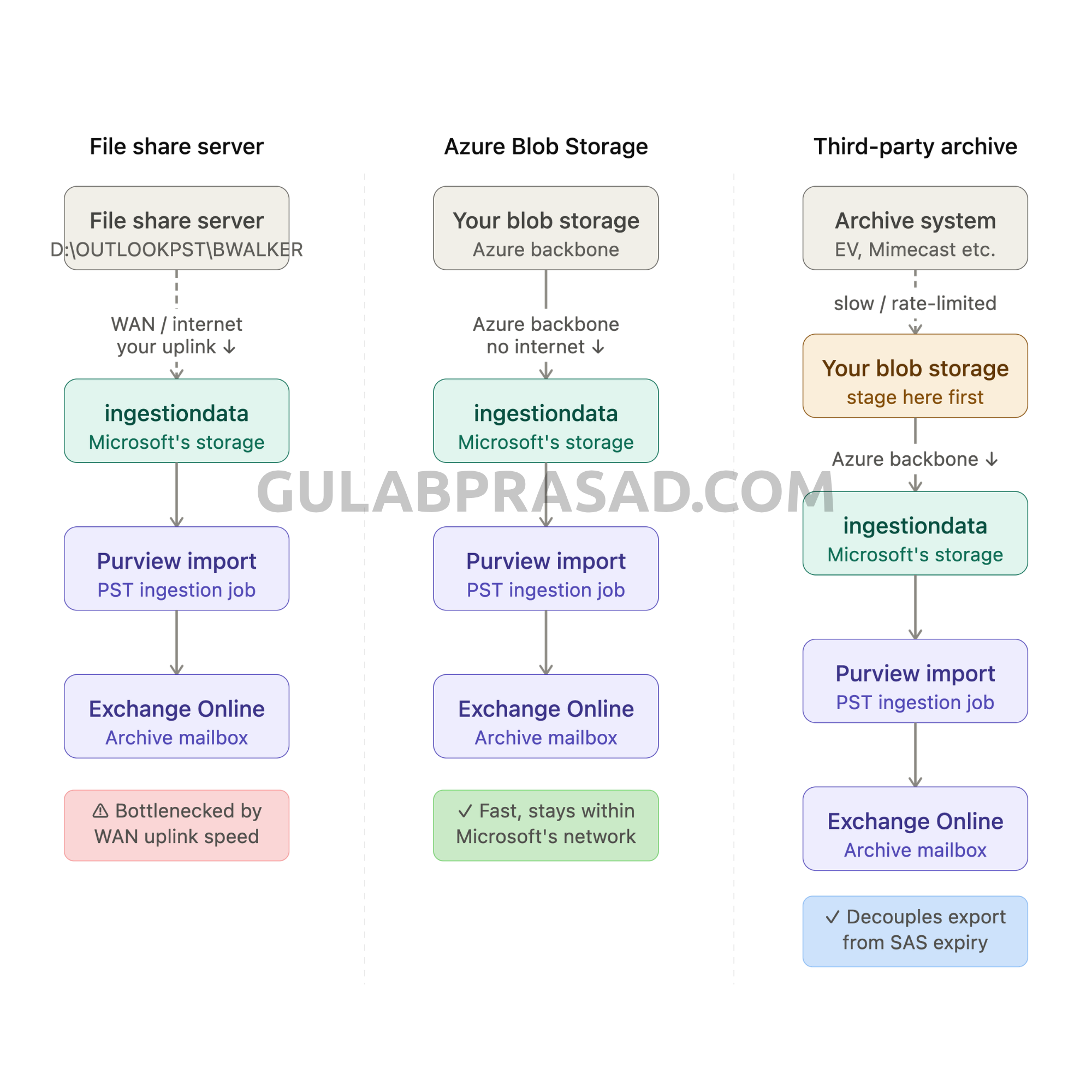
When you upload from a file share server, the data travels over your internet uplink to reach Microsoft's datacentres. A 40 GB PST file over a 100 Mbps connection takes about an hour under ideal conditions — and conditions are rarely ideal. You're competing with everything else on the network, the connection can drop mid-transfer, and large files are unforgiving when that happens.
Blob-to-blob never leaves Azure's internal backbone. Microsoft's datacentre network runs at speeds that make a typical office uplink look like a dial-up connection. I saw transfers completing at sustained throughput that would have taken three times as long over our internet link.
Third-party archive systems
This is worth calling out specifically because it comes up a lot. Some organisations have PST files locked inside third-party archive systems — Symantec Enterprise Vault, Mimecast, Proofpoint, and similar platforms. These systems often expose PST exports, but the export process can be slow, rate-limited, or constrained to specific time windows.
Trying to pipe data directly from one of these systems to Purview's ingestiondata creates a brittle dependency: if the export slows down or stops, the upload to Purview stops too. The SAS URL has a finite lifespan — if the export takes longer than the ske expiry, you need a new SAS URL mid-transfer. If the import job was already submitted, you may need to create a new one.
The better pattern — shown in the third column of the diagram above — is to stage in your own blob first, then blob-to-blob into Purview. Staging in your own blob storage decouples the slow/unpredictable export from the time-sensitive Purview upload. You export when the archive system is ready, verify the files are complete, and then kick off the Purview upload on your own schedule. You're not racing against a SAS expiry while an archive export is still running at 3 AM.
What about just running AzCopy on the file share server itself?
If the server has outbound internet access and AzCopy installed, this is perfectly valid. I did it for a few users where the PSTs hadn't made it into Azure storage yet. The command is the same — just point the source at the local path instead of a blob URL:
azcopy copy "D:\OUTLOOKPST\BWALKER\*" ^
  "https://3c3e5952●●●●●●●●.blob.core.windows.net/ingestiondata/BWALKER?●●●●" ^
  --recursive=false ^
  --include-pattern="*.pst;*.PST"
The downside is you're back to depending on the server's network connection and the server itself staying available. If the server gets shut down mid-upload — which is a real risk during a decommission — you have to figure out what got through and what didn't. Blob-to-blob doesn't have that problem because the source is already safely in Azure before you start.
The short version
If your PSTs are on a file share with no Azure staging: upload directly from the server. It works, but it will take a long time to ingest the data.
If your PSTs are already in Azure storage: always use blob-to-blob. It's faster, stays within Microsoft's network, doesn't tie up your WAN, and survives server decommissions.
If your PSTs are in a third-party archive: export to Azure staging first, then blob-to-blob to Purview. Never try to pipe an archive export directly into an import job with a ticking SAS token.
Before anything else — enable the archive mailboxes
Sounds obvious but worth saying: the archive mailbox needs to exist before you can import into it. If it isn't enabled, the import job will complete and the data will go nowhere.
Enable-Mailbox -Identity bwalker@domain.com -Archive
Getting the Purview SAS URL
Every import job in Purview gives you a temporary SAS URL that grants write access to the ingestiondata container. This is your upload destination. Without it you have nowhere to put the files.
Go to purview.microsoft.com, open Data lifecycle management → Import, create a new job, and on the upload screen click Show network upload SAS URL.
The URL looks roughly like this — I've hidden the sensitive parts:
https://3c3e5952●●●●●●●●●●●●●●●●●●●●●●●●.blob.core.windows.net/ingestiondata
?skoid=e2eebf44●●●●●●●●●●●●●●●●●●●●●●●●
&skt=2026-07-24T09%3A00%3A00Z
&ske=2026-07-31T09%3A00%3A00Z
&se=2026-08-23T09%3A00%3A00Z
&sr=c&sp=wl
&sig=●●●●●●●●●●●●●●●●●●●●●●●●●●●●●●●●●●●●●●●●
Notice there are two expiry dates. ske is the signing key expiry — usually about 7 days. se is the overall token expiry — usually 30 days. What caught us out is that uploads fail when ske expires, even if se hasn't. So if you're planning a large migration across multiple days, check the ske date before each run and grab a fresh URL if it's close.
Also note the sp=wl at the end — that's write and list permissions. The Purview SAS gives you exactly what you need to push data in and enumerate it, and nothing more. Keep that in mind when you're reasoning about what AzCopy can and can't do against this endpoint.
Bulk PST ingestion
Doing one user at a time is fine for a handful of mailboxes, but it gets old fast. So I wrote a PowerShell script to handle multiple users in one run. It reads a CSV of folder names and email addresses, pre-checks that each folder actually exists in the source before attempting the copy, runs the blob-to-blob transfer, writes a per-file CSV report as it goes, and — the part that saves the most time — generates the Purview mapping CSV automatically at the end.
Ingest_PST_MultiUser.ps1 — the bulk PST ingestion script
How it authenticates and where to edit it
Near the top of the script you'll find three values to set for your environment:
$AzCopyPath = "C:\AzCopy\azcopy.exe"
$SRC_BASE   = "https://<STORAGE_ACCOUNT_NAME>.blob.core.windows.net/<CONTAINER_NAME>"
$DEST_BASE  = "https://<Purview_SAS_URL>"
$SRC_BASE is your own staging container, $DEST_BASE is the full Purview SAS URL from the previous step. The script refuses to run if it can't find azcopy.exe at the path you gave it, which is a nicer failure than a cryptic error twenty users into a batch:
if (-not (Test-Path $AzCopyPath)) {
    Write-Host "ERROR: AzCopy not found at $AzCopyPath" -ForegroundColor Red
    exit 1
}
The input CSV
The script expects a two-column CSV — the source folder name and the mailbox it maps to:
FolderName,Email
BWALKER,bwalker@domain.com
GKHOSA,gkhosa@domain.com
HMALIK,hmalik@domain.com
TEBLI,tebli@domain.com
CMAYER,cmayer@domain.com
GGEORGE,ggeorge@domain.com
The email column is what lets the script build the mapping CSV for you at the end, so don't leave it out.
Check before you copy
For each user, the script runs azcopy list against the source folder first and skips cleanly if it isn't there. This matters because "the folder wasn't there" and "the copy failed" are completely different problems, and you want your report to tell them apart:
$checkResult = & $AzCopyPath list "$SRC_BASE/$user" 2>&1
$checkString = $checkResult -join " "

if ($checkString -match "cannot list|not found|does not exist|ResourceNotFound|404") {
    Write-Host "SKIPPED $user (folder not found in source)" -ForegroundColor Yellow
    # ... records the user as 'Skipped' in the report, then ...
    continue
}
A skip usually means a typo in the CSV or a user whose data never got staged. A failure means something went wrong mid-transfer. The report uses three distinct statuses — Completed, Failed, Skipped — so you can triage at a glance instead of re-investigating every row.
The actual copy — and the one flag that matters
Here's the underlying AzCopy command the script runs for each user:
azcopy copy "https://<STORAGE_ACCOUNT>.blob.core.windows.net/<CONTAINER>/BWALKER" ^
  "https://3c3e5952●●●●●●●●.blob.core.windows.net/ingestiondata?●●●●" ^
  --recursive=true ^
  --s2s-preserve-access-tier=false ^
  --include-pattern="*.pst;*.PST"
That --s2s-preserve-access-tier=false flag is the one I mentioned earlier, and it is the single most important detail in this whole post. Microsoft's ingestiondata container doesn't support blob access tiers. Without this flag, AzCopy tries to preserve the source tier on the destination, fails, reports the job as completed, and you end up with 0 bytes transferred. I stared at a "Final Job Status: Completed" message for longer than I'd like to admit before figuring out what was happening. If you take one thing from this article, take this: on a server-to-server copy into ingestiondata, the flag must be false.
The other two flags earn their place too. --recursive=true walks into subfolders, because users never keep their PSTs neatly at the top level. --include-pattern="*.pst;*.PST" filters to PST files case-insensitively — real containers always have a stray lowercase .pst mixed in with uppercase .PST, and you want both.
Running it
.\Ingest_PST_MultiUser.ps1 -UserCSV "C:\PST_Mig_Batch\Batch1_6Users.csv"
The script writes two files next to your input CSV: a timestamped upload report (one row per PST, with status, size, duration, and any error) and a timestamped Purview mapping CSV built from the rows that completed successfully. The report is flushed to disk after every user, so if the run gets interrupted at user 140 of 200 you still have a complete record of the first 139 and know exactly where to pick up.
Always verify after the upload finishes
Don't skip this step. Run:
azcopy list "https://3c3e5952●●●●●●●●.blob.core.windows.net/ingestiondata?●●●●" | findstr "BWALKER"
You'll see something like:
BWALKER/BWalker_Primary.pst; Content Length: 2.14 GiB
BWALKER/BWalker_Archive_2019.pst; Content Length: 1.87 GiB
BWALKER/BWalker_Archive_2020.pst; Content Length: 1.53 GiB
If nothing comes back, or if you see BWALKER/BWALKER/BWalker_Primary.pst with the folder name doubled up, something went wrong with the upload path. Fix it before you touch Purview. Submitting the import job against a wrong path wastes time and generates confusing error reports.
Fixing bad blob names in place — the rename script
Now back to that problem I flagged earlier: what do you do when the files are already in blob storage and their names contain characters Purview will reject? In my case it was German umlauts and parentheses — names like Persönliche Ordner(1).pst that uploaded perfectly and then failed validation.
You can't just rename a blob. Azure has no rename operation. A "rename" is really two operations: copy the blob to the new name, then delete the original. Doing that by hand across a couple hundred files is both tedious and dangerous, so I wrote a second script for it.
Scan_Rename_BlobPST.ps1 — scans a container for umlauts and parentheses and renames the offending blobs
What it does, in order
- Lists every blob in the container with
azcopy list. - Flags any blob whose name contains a German umlaut (
Ö ö Ä ä Ü ü ß) or parentheses. - Prints the full before/after list on screen and writes a scan report to disk.
- Stops and asks you to type
YESbefore it changes anything. - Only then performs the copy-to-new-name-then-delete-original for each blob, writing a separate rename audit log after every single operation.
The transliteration follows the standard German convention — the same substitutions people use when a keyboard can't produce the special characters:
function Get-CleanName {
    param([string]$name)

    $clean = $name

    # Transliterate German umlauts using Unicode code points
    # (avoids encoding issues with literal characters in the script file)
    $clean = $clean -replace ([char]0x00D6), 'oe'   # Ö
    $clean = $clean -replace ([char]0x00F6), 'oe'   # ö
    $clean = $clean -replace ([char]0x00C4), 'ae'   # Ä
    $clean = $clean -replace ([char]0x00E4), 'ae'   # ä
    $clean = $clean -replace ([char]0x00DC), 'ue'   # Ü
    $clean = $clean -replace ([char]0x00FC), 'ue'   # ü
    $clean = $clean -replace ([char]0x00DF), 'ss'   # ß

    # Remove parentheses, keep the contents, no space added
    # Persoenliche Ordner(1).pst -> Persoenliche Ordner1.pst
    $clean = $clean -replace '[()]', ''

    return $clean
}
There's a deliberate choice hiding in that function that's worth calling out: it matches on Unicode code points like [char]0x00F6 rather than typing ö directly into the script. The moment a script file containing literal umlauts gets opened, edited, or committed with the wrong encoding, those characters mutate and your replacements silently stop matching. Referencing the code point means the script does the same thing no matter what editor mangles it later. The same paranoia is why the script forces UTF-8 on the console before it reads anything back from AzCopy — otherwise the umlauts in the blob listing are already corrupted before you can compare them.
Why it asks permission
Because the rename is destructive — copy then delete — a bad transliteration rule applied blindly across two hundred files is two hundred problems. So the script scans, shows you everything, freezes a scan report to disk, and waits:
$confirm = Read-Host "Type YES to proceed with renaming, or anything else to cancel"

if ($confirm -ne "YES") {
    Write-Host "Cancelled. No changes made." -ForegroundColor Yellow
    exit 0
}
The first time I ran it, that pause let me catch a rule I'd got wrong before it touched a single blob. A confirmation prompt is the cheapest insurance you'll ever write.
The rename itself
Each rename captures both AzCopy exit codes so the audit log tells the truth even when things half-fail — the nightmare case being a copy that succeeds followed by a delete that doesn't, leaving you with duplicate blobs:
$copyOutput = & $AzCopyPath copy "$srcUrl" "$dstUrl" 2>&1
if ($LASTEXITCODE -eq 0) {
    $removeOutput = & $AzCopyPath remove "$srcUrl" 2>&1
    if ($LASTEXITCODE -eq 0) {
        $result = "Yes"                                  # renamed cleanly
    } else {
        $result = "Copied but original NOT deleted"      # needs manual cleanup
    }
} else {
    $result = "FAILED"
}
One more detail that saved me: the script URL-encodes each path segment but keeps the slashes as separators. Escape the whole path and your directory separators get encoded too, and AzCopy can't find anything:
$oldEncoded = ($oldBlob -split '/' | ForEach-Object { [uri]::EscapeDataString($_) }) -join '/'
The SAS token on this script needs more permissions than the ingestion one — read, write, delete, and list (rwdl), because it both copies and deletes. Leave the token blank and it falls back to Azure AD auth, in which case the account needs the Storage Blob Data Contributor role. Run this script before the blob-to-blob copy into Purview, so the clean names are what get ingested.
The mapping CSV
Once the files are in ingestiondata, you need to tell Purview which PST belongs to which mailbox. That's what the mapping CSV does. The ingestion script generates this for you automatically, but it's worth understanding the format so you can sanity-check it.
Here's what it looks like for this batch:
Workload,FilePath,Name,Mailbox,IsArchive,TargetRootFolder,ContentCodePage,SPFileContainer,SPManifestContainer,SPSiteUrl
Exchange,BWALKER,BWalker_Primary.pst,bwalker@domain.com,TRUE,/BWalker_Primary,,,,
Exchange,BWALKER,BWalker_Archive_2019.pst,bwalker@domain.com,TRUE,/BWalker_Archive_2019,,,,
Three things I'd flag here:
FilePath is just the subfolder name. Not the full URL. Not ingestiondata/BWALKER. Just BWALKER. I know this seems obvious written down, but when you're staring at a failed validation report at 5pm it's easy to second-guess yourself.
TargetRootFolder matters more than you'd think. When Exchange imports a PST it merges the internal folder structure into the archive. If you don't give it a target root folder, your Inbox from 2018 merges with the user's current Inbox and things get confusing. Using named folders like /BWalker_Archive_2019 keeps the imported data cleanly separated. The ingestion script builds this automatically from the PST filename — lowercased, extension stripped, spaces turned into underscores.
Casing is case-sensitive. BWalker_Primary.pst and bwalker_primary.pst are different files in blob storage. This is another reason to let the script generate the mapping from the actual azcopy list output rather than typing filenames by hand.
Submitting and waiting
Upload the CSV to your import job in Purview, hit Validate, and assuming all the rows come back green, click Import to Office 365.
Then you wait. For a batch this size — roughly 50–60 GB across six users — I saw results showing up in the archive mailboxes within 24 hours. Larger PST files take proportionally longer, and Microsoft processes everything in a queue, so timing isn't perfectly predictable.
You can check progress without sitting in the portal:
$users = @(
    "bwalker@domain.com",
    "gkhosa@domain.com",
    "hmalik@domain.com",
    "tebli@domain.com",
    "cmayer@domain.com",
    "ggeorge@domain.com"
)

foreach ($user in $users) {
    $stats = Get-MailboxStatistics -Identity $user -Archive |
        Select-Object DisplayName, TotalItemSize, ItemCount
    Write-Host "$($stats.DisplayName) | $($stats.TotalItemSize) | $($stats.ItemCount) items"
}
Run this every few hours and watch the numbers grow. When they stop changing, the import is done.
What went wrong for us (so it doesn't go wrong for you)
I uploaded to our own storage account first. The PSTs were already in Azure so I assumed Purview could just read from there. It can't. Microsoft's import service is hardwired to ingestiondata only. First batch took two attempts because of this.
The access-tier flag was set wrong. As covered above — --s2s-preserve-access-tier must be false for ingestiondata. With it left at the default, AzCopy reported success and moved nothing. This is the mistake most likely to waste your day.
German umlauts passed upload and failed validation. Everything copied cleanly, then Purview rejected Persönliche Ordner(1).pst and friends at the mapping stage. This is what the rename script exists to prevent — run it against your staging container before the blob-to-blob copy.
Submitted the import job before the upload finished. Purview validates against whatever is in the blob at that moment. If the upload is still running, validation fails with "PST could not be found" for every row. Wait for AzCopy to show Final Job Status: Completed before touching the Purview portal.
MailArchiv.pst was 36 GB and had a corrupted header. The import job completed with errors for that one file. I ran SCANPST.EXE on it, repaired it, re-uploaded, and resubmitted. Worth running SCANPST on large PSTs before you start — finding out at import time is annoying.
After it's done
Users can access the imported mail through the Online Archive folder in Outlook — it shows up as a separate mailbox in the folder pane. The folder names you defined in TargetRootFolder will be there, each containing the mail from the corresponding PST.
Microsoft cleans up the blobs from ingestiondata automatically once the import completes, so there's nothing to do on that side. The PSTs in your own storage account are untouched — delete them when you're confident everything came across.
If you have more batches to run, the process repeats. The Purview import job can be reused or you can create a new one — either way, the SAS URL ske check before each run is non-negotiable.
The two scripts, in the order you run them
To pull it all together, here's the sequence for a typical batch:
- Scan and rename — run
Scan_Rename_BlobPST.ps1against your staging container to clean up umlauts and parentheses before anything reaches Purview. - Enable archive mailboxes —
Enable-Mailbox -Archivefor every target user. - Get a fresh Purview SAS URL — check the
skeexpiry. - Bulk ingest — run
Ingest_PST_MultiUser.ps1with yourFolderName,EmailCSV. It copies blob-to-blob and generates the mapping CSV. - Verify —
azcopy listthe destination and confirm the files and paths are correct. - Validate and import — upload the mapping CSV in Purview, validate, import to Office 365.
- Monitor — poll
Get-MailboxStatistics -Archiveuntil the numbers settle.
Both scripts use placeholder values for storage account names, container names, and SAS tokens — swap in your own before running, and make sure each token has the permissions its script needs (rwdl for the rename, write/list for the ingestion destination). They're deliberately unglamorous: check before you act, log everything, ask before you break something, and leave a paper trail you can hand to an auditor three months later when someone asks whether so-and-so's mailbox ever actually got migrated.