
Friendly Model Name and More hardware profile into Log Analytics with Intune Remediations Script
If you run device reporting out of Log Analytics, you have probably noticed something odd about Lenovo machines. Pull a list of devices from the IntuneDevices table, look at the Model column, and instead of a name you get something like 52GPS2MQ03. The HP next to it reads "HP EliteBook 630 13 inch G9" - perfectly clear - but the Lenovo is a string of characters that means nothing to anyone who has not memorized Lenovo's product codes.
This is not a bug, and it is not something you can toggle off. It is a consequence of
where Lenovo stores the model name and what Intune actually exports. The good news is that it is fixable. The fix is a small pipeline that collects the real name from each device and lands it in a table you can join to. This article walks through why the problem exists, why the obvious fixes do not work, and how to build the one that does - with the complete code at the end so you can reproduce it.
Why Lenovo devices show a code
That string like 52GPS2MQ03 is a Machine Type Model, or MTM. On Lenovo hardware, the value in Win32_ComputerSystem.Model — the property Intune reads and exports - is the MTM code, not the marketing name. The friendly name you actually want, "ThinkPad T14 Gen 4", lives in a different property: Win32_ComputerSystemProduct.Version.
Most other manufacturers put the readable name straight into Model, which is why HP and Dell devices look fine while Lenovo devices look cryptic. So the problem is specific: the data you want exists on the device, but in a field Intune's standard diagnostic export does not carry into Log Analytics.
That last point is the whole crux. A KQL query can only return data that has been
ingested into a table. The friendly name is sitting on each device and nowhere in your workspace, so no query - however cleverly written — can produce it. Something has to carry that value into the workspace first.
The fixes that do not work
Before building the pipeline, it is worth knowing which paths are dead ends, because they look promising and cost real time.
Adding a custom column to IntuneDevices. The instinct is to add a column, maybe call it ModelFriendly_CF, and expect it to fill. It does not. A schema column is an empty container. Creating one does not create anything that writes to it, so it stays empty on every row. This is the most common trap: the column exists, the query runs without error, and every value is blank.
Looking for an app or hardware inventory table. A plain Log Analytics workspace fed by Entra and Intune diagnostics has no software or detailed hardware inventory table. The tables you get are sign-in logs, audit logs, and device compliance data. None of them carries per-device model detail beyond what is already in IntuneDevices.
Reaching for Defender's inventory tables. Microsoft Defender for Endpoint has a DeviceTvmSoftwareInventory table that is genuinely useful - but it lives in Defender Advanced Hunting, a different query surface, and only exists if Defender Vulnerability Management is licensed and devices are onboarded. Running a query against it in a standard Log Analytics workspace returns "failed to resolve table," because the table is not there.
The common thread: the friendly name is not in any table Intune populates, and no amount of querying changes that. The value has to be ingested.
The approach that works
The solution has three parts connected by a table in the middle:
- A remediation script runs on each device, reads the friendly name locally, and sends it to Log Analytics.
- A custom table in the workspace stores one row per device.
- A KQL query joins that table back to
IntuneDevicesto produce the report.
Make sure DCR has Monitoring Metrics Publisher role assigned to it and Entra App as member.
It helps to be precise about how the pieces relate, because it is easy to imagine the
query somehow reaching out to devices. It does not. The script writes data into a table; the query reads from that table. They never talk to each other directly. The script is a writer, the query is a reader, and the table is the mailbox between them. A device only appears in the report after it has run the script at least once - a property worth remembering when you roll this out.
The plumbing that carries data from device to table is Azure's Logs Ingestion API,
fronted by two resources: a Data Collection Endpoint (the URL you post to) and a Data Collection Rule (which validates the incoming data and routes it to your table). An app registration provides the identity the script authenticates as.
Building the pipeline (one-time setup)
This infrastructure is created once. New devices flow through it automatically afterwards.
1. App registration. In Entra ID, create an app registration (no redirect URI
needed). Record its Application (client) ID and your tenant ID. Under Certificates & secrets, create a client secret and copy its value immediately - it is shown only once. This is the identity the script authenticates as.
2. Custom table. In your Log Analytics workspace, create a DCR-based custom log table named ModelFriendly (the platform appends _CL, giving ModelFriendly_CL). When it asks for a schema sample, provide one row so it infers the columns:
[
  {
    "TimeGenerated": "2026-07-31T12:00:00Z",
    "SerialNumber": "EXAMPLE123",
    "DeviceName": "EXAMPLE-DEVICE",
    "ModelRaw": "52GPS2MQ03",
    "ModelFriendly": "ThinkPad T14 Gen 4",
    "Manufacturer": "Lenovo"
  }
]
This sample is used once, to define the table's columns. It is not stored and does not apply to any device - the real per-device values come from the script.
3. Data Collection Endpoint (DCE). Create a DCE in the same region as your workspace (they must be co-located). Its Logs Ingestion URI is what the script posts to.
4. Data Collection Rule (DCR). The custom-table wizard can create this for you and link it to the table. From the DCR's JSON View, record two values: the immutableId (format dcr- followed by 32 hex characters) and the stream name under streamDeclarations (format YourStreamName).
5. Grant permission. On the DCR, under Access control (IAM), assign the
Monitoring Metrics Publisher role to the app registration. This is what authorizes the write. Without it the script authenticates but the post fails with 403 Forbidden.
You now have the six values the script needs: tenant ID, client ID, client secret, DCE ingestion URI, DCR immutable ID, and stream name.
The remediation script
Deploy this as an Intune remediation (Devices → Remediations), assigned to a dynamic or all-Windows-devices group so every current and future device is covered. Fill in the six values at the top.
# ===== FILL THESE IN ===== #
$TenantId       = "<your-tenant-id>"
$AppId          = "<app-registration-client-id>"
$AppSecret      = "<app-registration-client-secret>"
$DceUri         = "https://<your-dce>.<region>.ingest.monitor.azure.com"
$DcrImmutableId = "dcr-xxxxxxxxxxxxxxxxxxxxxxxxxxxxxxxx"
$StreamName     = "YourStreamName"
# =========================

# ---------- Collect ----------
$cs   = Get-CimInstance Win32_ComputerSystem
$csp  = Get-CimInstance Win32_ComputerSystemProduct
$bios = Get-CimInstance Win32_BIOS

# Lenovo stores the MTM code in Model and the real name in CSP.Version.
# Other manufacturers already have a readable Model, so leave those as-is.
$modelFriendly = ($cs.Model).Trim()
if (($cs.Manufacturer).Trim() -match "Lenovo" -and $csp.Version.Trim()) {
    $modelFriendly = $csp.Version.Trim()
}

# ---------- Payload ----------
$payload = @(
    @{
        SerialNumber  = $bios.SerialNumber.Trim()   # join key back to IntuneDevices
        DeviceName    = $env:COMPUTERNAME
        ModelRaw      = ($cs.Model).Trim()
        ModelFriendly = $modelFriendly
        Manufacturer  = ($cs.Manufacturer).Trim()
        TimeGenerated = (Get-Date).ToUniversalTime().ToString("o")
    }
)

# ---------- Post ----------
try {
    $tokenBody = @{
        client_id     = $AppId
        client_secret = $AppSecret
        scope         = "https://monitor.azure.com/.default"
        grant_type    = "client_credentials"
    }
    $token = (Invoke-RestMethod -Method Post `
        -Uri "https://login.microsoftonline.com/$TenantId/oauth2/v2.0/token" `
        -Body $tokenBody).access_token

        $ingestUri = "$DceUri/dataCollectionRules/$DcrImmutableId/streams/$StreamName`?api-version=2023-01-01"
    $headers = @{
        "Authorization" = "Bearer $token"
        "Content-Type"  = "application/json"
    }

    $json = ConvertTo-Json -InputObject $payload -Depth 5
    if ($json -notmatch '^\s*\[') { $json = "[$json]" }

    Invoke-RestMethod -Method Post -Uri $ingestUri -Headers $headers -Body $json

    Write-Output "SUCCESS: Posted ModelFriendly '$modelFriendly' for $($env:COMPUTERNAME)"
    exit 0
}
catch {
    $errBody = $_.ErrorDetails.Message
    if (-not $errBody -and $_.Exception.Response) {
        $r = New-Object System.IO.StreamReader($_.Exception.Response.GetResponseStream())
        $errBody = $r.ReadToEnd()
    }
    Write-Error "Ingestion failed: $($_.Exception.Message)`nBody: $errBody"
    exit 1
}
The script computes the friendly name, builds a one-row payload, requests a bearer token as the app registration, and posts to the ingestion endpoint. The serial number is the join key that ties this row back to the matching device in IntuneDevices.
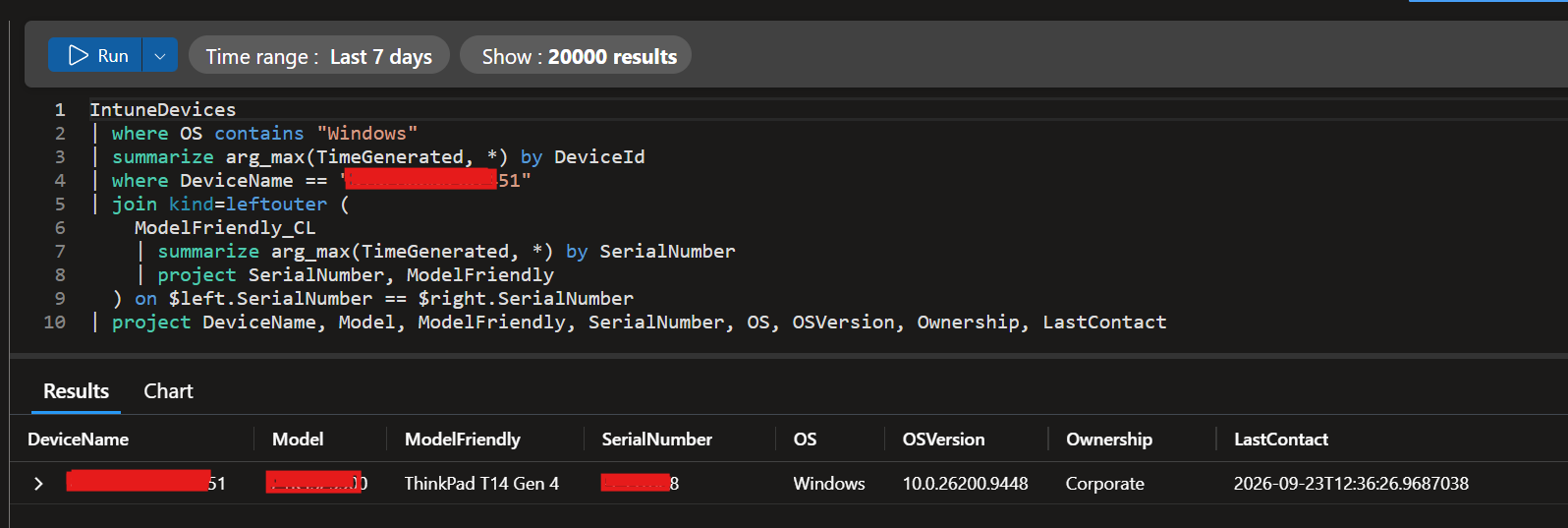
The payoff query
Once devices start posting, the report is a straightforward join - latest record per
device on each side, joined on serial number:
IntuneDevices
| where OS contains "Windows"
| summarize arg_max(TimeGenerated, *) by DeviceId
| where DeviceName == "#############"
| join kind=leftouter (
    ModelFriendly_CL
    | summarize arg_max(TimeGenerated, *) by SerialNumber
    | project SerialNumber, ModelFriendly
  ) on $left.SerialNumber == $right.SerialNumber
| project DeviceName, Model, ModelFriendly, SerialNumber, OS, OSVersion, Ownership, LastContact
Now ModelFriendly reads "ThinkPad T14 Gen 4" for the Lenovo and "HP EliteBook 630 13 inch G9" for the HP, side by side, in one report.
Query for all Windows devices
IntuneDevices | where OS contains "Windows" | summarize arg_max(TimeGenerated, *) by DeviceId | join kind=leftouter (
    ModelFriendly_CL
    | summarize arg_max(TimeGenerated, *) by SerialNumber
    | project SerialNumber, ModelFriendly   ) on $left.SerialNumber == $right.SerialNumber | project DeviceName, UPN, ModelFriendly, OS, OSVersion, Ownership, SerialNumber, LastContact | order by DeviceName asc
Things to know before you deploy
It is forward-only. A device populates its row only after it runs the script.
Existing history will not backfill, and a device that has never run it shows a blank
friendly name. Deploy the remediation to a dynamic or all-Windows group so every current and future device is covered automatically, then allow a cycle or two for coverage to fill in.
Confirm the join key. Before trusting the fleet-wide report, check one device: does its ModelFriendly actually populate in the join? If the serial number format differs between what the script reads and what IntuneDevices stores, the join misses silently and every value comes back blank despite data existing on both sides. Verify one device first.
Mind the embedded secret. The script carries the app registration's secret, and it runs on every device. Scope that secret to nothing more than Monitoring Metrics Publisher on the single Data Collection Rule, and set a reminder to rotate it before it expires - if it lapses, every device quietly stops reporting. For a stronger posture, consider moving the actual posting to a central component with a managed identity, so no secret is distributed to endpoints at all.
Going further: collecting more than the model name
The friendly-name problem is the reason to build this, but the pipeline is the real
asset. Anything PowerShell can read on a device can flow through the same path into Log Analytics and sit alongside your sign-in and compliance data, all quarriable in KQL - BIOS version, TPM status, RAM totals, battery health, disk encryption state, Secure Boot, and more.
The one rule when extending it: each new field must exist in three places that stay in agreement - the script that collects it, the DCR stream declaration that validates it, and the table that stores it. Miss the DCR and the post is rejected with a 400; miss the table and the data has nowhere to land.
As a small illustration, adding BIOS version and system-disk free space means collecting them in the script, declaring them in the DCR, and adding them to the table - the same field name in all three. The next section does this in full for a complete hardware inventory.
A full hardware inventory for refresh planning
The model name is one field. The same pattern collects a whole hardware profile, which is where it starts to pay off for laptop-refresh planning: RAM totals, battery health, disk encryption, TPM readiness, Secure Boot, and more, all in one quarriable table.
A couple of design decisions make this practical. First, one-to-many data - multiple disks or multiple RAM sticks - does not fit one flat row per device, so it is flattened: total RAM rather than per-stick, the system disk rather than every volume. If you truly need per-volume detail, that belongs in a separate one-row-per-volume table. Second, some values are laptop-only and vendor-inconsistent (battery capacity in particular), so those fields are allowed to come back empty on desktops rather than treated as errors.
The collection script
This is the same script as before with the hardware fields added around the model logic. Everything still posts to the same stream and table.
# ===== FILL THESE IN =====
$TenantId       = "<your-tenant-id>"
$AppId          = "<app-registration-client-id>"
$AppSecret      = "<app-registration-client-secret>"
$DceUri         = "https://<your-dce>.<region>.ingest.monitor.azure.com"
$DcrImmutableId = "dcr-xxxxxxxxxxxxxxxxxxxxxxxxxxxxxxxx"
$StreamName     = "YourStreamName"
# =========================

# ---------- Collect ----------
$cs   = Get-CimInstance Win32_ComputerSystem
$csp  = Get-CimInstance Win32_ComputerSystemProduct
$bios = Get-CimInstance Win32_BIOS

# Model friendly (Lenovo puts MTM in Model, real name in CSP.Version)
$modelFriendly = ($cs.Model).Trim()
if (($cs.Manufacturer).Trim() -match "Lenovo" -and $csp.Version.Trim()) {
    $modelFriendly = $csp.Version.Trim()
}

# --- BIOS ---
$biosVersion = ($bios.SMBIOSBIOSVersion).Trim()
$biosDate    = $null
try { $biosDate = ($bios.ReleaseDate).ToUniversalTime().ToString("o") } catch {}

# --- TPM ---
$tpmPresent = $false; $tpmReady = $false; $tpmVersion = "Unknown"
try {
    $tpm = Get-Tpm -ErrorAction Stop
    $tpmPresent = [bool]$tpm.TpmPresent
    $tpmReady   = [bool]$tpm.TpmReady
    $wmiTpm = Get-CimInstance -Namespace "Root\CIMV2\Security\MicrosoftTpm" -ClassName Win32_Tpm -ErrorAction SilentlyContinue
    if ($wmiTpm.SpecVersion) { $tpmVersion = ($wmiTpm.SpecVersion -split ",")[0].Trim() }
} catch {}

# --- RAM (flattened) ---
$ram          = Get-CimInstance Win32_PhysicalMemory
$ramTotalGB   = [math]::Round(($ram | Measure-Object -Property Capacity -Sum).Sum / 1GB, 0)
$ramSlotsUsed = ($ram | Measure-Object).Count
$ramSpeed     = ($ram | Select-Object -First 1 -ExpandProperty Speed)
$arr          = Get-CimInstance Win32_PhysicalMemoryArray | Select-Object -First 1
$ramSlotsTotal = $arr.MemoryDevices
$ramSlotsFree  = if ($ramSlotsTotal) { $ramSlotsTotal - $ramSlotsUsed } else { $null }

# --- System disk (C:) ---
$sysDisk = Get-CimInstance Win32_LogicalDisk -Filter "DeviceID='C:'"
$sysDiskFreeGB = [math]::Round($sysDisk.FreeSpace / 1GB, 1)
$sysDiskSizeGB = [math]::Round($sysDisk.Size / 1GB, 1)
$physDisk = Get-CimInstance Win32_DiskDrive | Select-Object -First 1
$diskModel = ($physDisk.Model).Trim()
$diskHealth = "Unknown"
try {
    $pd = Get-PhysicalDisk -ErrorAction Stop | Select-Object -First 1
    if ($pd.HealthStatus) { $diskHealth = $pd.HealthStatus }
} catch {}

# --- BitLocker on C: ---
$encState = "Unknown"
try {
    $bl = Get-BitLockerVolume -MountPoint "C:" -ErrorAction Stop
    $encState = $bl.ProtectionStatus.ToString()   # On / Off
} catch {}

# --- Battery health (designed vs full-charge capacity) ---
$batteryHealthPct = $null; $designedCap = $null; $fullCap = $null
try {
    $static = Get-CimInstance -Namespace "root\wmi" -ClassName BatteryStaticData -ErrorAction Stop | Select-Object -First 1
    $full   = Get-CimInstance -Namespace "root\wmi" -ClassName BatteryFullChargedCapacity -ErrorAction Stop | Select-Object -First 1
    if ($static.DesignedCapacity -and $full.FullChargedCapacity) {
        $designedCap = [int]$static.DesignedCapacity
        $fullCap     = [int]$full.FullChargedCapacity
        $batteryHealthPct = [math]::Round(($fullCap / $designedCap) * 100, 1)
    }
} catch {}   # desktops have no battery — stays null

# --- GPU ---
$gpu = Get-CimInstance Win32_VideoController | Select-Object -First 1
$gpuModel  = ($gpu.Name).Trim()
$gpuDriver = ($gpu.DriverVersion).Trim()

# --- Secure Boot ---
$secureBoot = "Unknown"
try { $secureBoot = if (Confirm-SecureBootUEFI) { "On" } else { "Off" } } catch { $secureBoot = "NotSupported" }

# ---------- Payload ----------
$payload = @(
    @{
        # identity / join key
        SerialNumber   = $bios.SerialNumber.Trim()
        DeviceName     = $env:COMPUTERNAME
        Manufacturer   = ($cs.Manufacturer).Trim()
        ModelRaw       = ($cs.Model).Trim()
        ModelFriendly  = $modelFriendly
        # BIOS
        BiosVersion    = $biosVersion
        BiosDate       = $biosDate
        # TPM
        TpmPresent     = $tpmPresent
        TpmReady       = $tpmReady
        TpmVersion     = $tpmVersion
        # RAM
        RamTotalGB     = [int]$ramTotalGB
        RamSlotsUsed   = [int]$ramSlotsUsed
        RamSlotsFree   = $ramSlotsFree
        RamSpeedMHz    = [int]$ramSpeed
        # Disk
        DiskModel      = $diskModel
        DiskHealth     = $diskHealth
        SysDiskSizeGB  = $sysDiskSizeGB
        SysDiskFreeGB  = $sysDiskFreeGB
        EncryptionState = $encState
        # Battery
        BatteryDesignedCapacity = $designedCap
        BatteryFullCapacity     = $fullCap
        BatteryHealthPct        = $batteryHealthPct
        # GPU
        GpuModel       = $gpuModel
        GpuDriver      = $gpuDriver
        # Firmware
        SecureBoot     = $secureBoot
        # timestamp
        TimeGenerated  = (Get-Date).ToUniversalTime().ToString("o")
    }
)

# ---------- Post ----------
try {
    $tokenBody = @{
        client_id     = $AppId
        client_secret = $AppSecret
        scope         = "https://monitor.azure.com/.default"
        grant_type    = "client_credentials"
    }
    $token = (Invoke-RestMethod -Method Post `
        -Uri "https://login.microsoftonline.com/$TenantId/oauth2/v2.0/token" `
        -Body $tokenBody).access_token

    $ingestUri = "$DceUri/dataCollectionRules/$DcrImmutableId/streams/$StreamName`?api-version=2023-01-01"
    $headers   = @{ "Authorization" = "Bearer $token"; "Content-Type" = "application/json" }
    $body      = $payload | ConvertTo-Json -AsArray -Depth 5

    Invoke-RestMethod -Method Post -Uri $ingestUri -Headers $headers -Body $body
    Write-Output "SUCCESS: posted inventory for $($env:COMPUTERNAME)"
    exit 0
}
catch {
    $errBody = $_.ErrorDetails.Message
    if (-not $errBody -and $_.Exception.Response) {
        $r = New-Object System.IO.StreamReader($_.Exception.Response.GetResponseStream())
        $errBody = $r.ReadToEnd()
    }
    Write-Error "Ingestion failed: $($_.Exception.Message)`nBody: $errBody"
    exit 1
}
The DCR stream declaration
Add these columns to streamDeclarations."YourStreamName".columns in the DCR's JSON, alongside the existing identity columns. Names and types must match the script.
{ "name": "BiosVersion",             "type": "string" },
{ "name": "BiosDate",                "type": "datetime" },
{ "name": "TpmPresent",              "type": "boolean" },
{ "name": "TpmReady",                "type": "boolean" },
{ "name": "TpmVersion",              "type": "string" },
{ "name": "RamTotalGB",              "type": "int" },
{ "name": "RamSlotsUsed",            "type": "int" },
{ "name": "RamSlotsFree",            "type": "int" },
{ "name": "RamSpeedMHz",             "type": "int" },
{ "name": "DiskModel",               "type": "string" },
{ "name": "DiskHealth",              "type": "string" },
{ "name": "SysDiskSizeGB",           "type": "real" },
{ "name": "SysDiskFreeGB",           "type": "real" },
{ "name": "EncryptionState",         "type": "string" },
{ "name": "BatteryDesignedCapacity", "type": "int" },
{ "name": "BatteryFullCapacity",     "type": "int" },
{ "name": "BatteryHealthPct",        "type": "real" },
{ "name": "GpuModel",                "type": "string" },
{ "name": "GpuDriver",               "type": "string" },
{ "name": "SecureBoot",              "type": "string" }
The custom table columns
Add the same columns to the table schema. Note the type keyword difference: the DCR JSON uses boolean, while the table schema uses bool - same concept, different keyword per API.
| Column | Type |
|---|---|
| BiosVersion | string |
| BiosDate | datetime |
| TpmPresent | bool |
| TpmReady | bool |
| TpmVersion | string |
| RamTotalGB | int |
| RamSlotsUsed | int |
| RamSlotsFree | int |
| RamSpeedMHz | int |
| DiskModel | string |
| DiskHealth | string |
| SysDiskSizeGB | real |
| SysDiskFreeGB | real |
| EncryptionState | string |
| BatteryDesignedCapacity | int |
| BatteryFullCapacity | int |
| BatteryHealthPct | real |
| GpuModel | string |
| GpuDriver | string |
| SecureBoot | string |
The refresh-planning query
This pulls the latest inventory per device, joins it to Intune for ownership and OS
context, and flags devices against simple refresh criteria. Adjust the thresholds to your own standards.
IntuneDevices
| where OS contains "Windows"
| summarize arg_max(TimeGenerated, *) by DeviceId
| project DeviceName, UPN, OS, OSVersion, Ownership, SerialNumber, LastContact
| join kind=leftouter (
    ModelFriendly_CL
    | summarize arg_max(TimeGenerated, *) by SerialNumber
    | project SerialNumber, ModelFriendly, BiosVersion, TpmVersion, TpmReady,
              RamTotalGB, RamSlotsUsed, RamSlotsFree, RamSpeedMHz,
              DiskModel, DiskHealth, SysDiskSizeGB, SysDiskFreeGB, EncryptionState,
              BatteryHealthPct, GpuModel, GpuDriver, SecureBoot
  ) on SerialNumber
| extend RefreshFlags = strcat(
    iff(RamTotalGB < 16, "LowRAM;", ""),
    iff(BatteryHealthPct < 70 and isnotempty(BatteryHealthPct), "BatteryWorn;", ""),
    iff(SysDiskFreeGB < 20, "LowDisk;", ""),
    iff(TpmReady == false, "TPMNotReady;", ""),
    iff(SecureBoot != "On", "SecureBootOff;", "")
  )
| project DeviceName, ModelFriendly, Ownership, OSVersion,
          RamTotalGB, RamSlotsFree, BatteryHealthPct, SysDiskFreeGB,
          EncryptionState, TpmVersion, SecureBoot, RefreshFlags,
          LastContact
| order by RefreshFlags desc, DeviceName asc
Devices with the most flags sort to the top, giving you a ready-made shortlist for the next refresh cycle.
A few practical notes
- Test as SYSTEM, not as your admin user. Remediations run as SYSTEM, and
Get-Tpm,Confirm-SecureBootUEFI,Get-BitLockerVolume, and the battery WMI classes can behave differently in that context. Validate with a SYSTEM-context run before deploying widely. - Battery fields are laptop-only and vendor-inconsistent; desktops and some models return nothing, so those fields stay empty by design.
- Disk and RAM are flattened to the system disk and totals. Per-volume or per-stick detail needs a separate one-row-per-record table.
- Hardware is fairly static, so a weekly schedule is plenty. Free disk space is the only volatile field here; to trend it over time, consider a separate, more frequent table so the history is preserved.
What starts as a fix for a cosmetic annoyance ends up as a lightweight, custom inventory system that fills the gap between what Intune reports natively and what you actually want to know.
Note: before publishing, replace any real identifiers - serial numbers, device names, tenant and subscription IDs, DCE hostnames - with placeholders.